AI Providers Overview
This section provides AI provider-specific guidance and resource examples for deploying Pixee Enterprise Server on major cloud platforms.
Advanced AI Model Configuration
Web Search Model
Some analysis tasks need live web search — most notably the Software Composition Analysis (SCA) CVE research agents, which look up advisories and exploit reports while assessing whether a vulnerable dependency is reachable in your code. Those agents request the search tool as a native model capability, so the model you name here has to be one your provider serves search on.
Leaving it blank does not turn web search off. The analysis service keeps the search tool attached to its web search client and only borrows a model name — from the reasoning model in the admin console, or from global.pixee.ai.default.model in a Helm install. If that model serves search natively, research still runs with live search.
Set this field only when research should use a different model from the one handling reasoning.
Provider support. OpenAI, Azure AI Foundry, Anthropic, Azure Anthropic and Bedrock Mantle all serve web search natively. Bedrock Converse does not. The admin console shows no field for it, and a Helm value set for it is ignored rather than passed through — a model named for a role the Converse API cannot serve would fail every research call. On Converse the SCA research agents cannot run at all — the tool is requested as a required native capability, so pydantic-ai raises rather than quietly dropping it.
Navigate to the admin console, select the Config tab, then go to the AI Settings section.
- Web Search Model Name: the model used for research tasks that need live web search. Defaults to the same model as the reasoning field for your provider. Not shown when the provider is Bedrock Converse.
global:
  pixee:
    ai:
      webSearch:
        # Must be a model your provider serves web search on. Leave unset to
        # reuse the default model without the search tool. Ignored entirely
        # when provider is bedrock-converse.
        model: "gpt-5.4-mini"
        # Optional reasoning effort for this model.
        effort: ""
OpenAI
Requirements
AI Provider integration requires:
- An AI provider API key with access to the required models
- An AI provider endpoint, or default to the provider's public API endpoint
- Model names for the reasoning and fast models from your chosen AI provider
For OpenAI, see OpenAI's page on creating an API Key for more information.
OpenAI-compatible APIs
Providers such as Azure AI Foundry and AWS Bedrock provide endpoints for connecting to both OpenAI and non-OpenAI models via a consistent OpenAI-compatible API. This enables connection to models from these providers with the same configuration as if it was OpenAI directly.
Requirements
- An AI provider endpoint
- Model names for the reasoning and fast models from your chosen AI provider
- An AI provider API key with access to the required models
Example: Connecting to DeepSeek-R1 via Azure AI Foundry
Azure AI Foundry hosts a variety of foundation models from industry-leading providers. In this example, Pixee will be configured to connect to DeepSeek-R1 using the OpenAI-compatible API endpoints using the same process for connecting to OpenAI's API directly. This example assumes that the model has already been deployed in the target Azure environment, and a model deployment API key has already been created.
Input the OpenAI-compatible endpoint for your deployment
Azure AI Foundry provides a cononacle URL endpoint for AI Foundry model deployments. It's usually of the format https://{foundary-instance-name}-resource.service.ai.azure.com/models.
Input your API key
Copy the deployment's endpoint key from the Azure AI Foundry portal and paste it into the API key field.
Specify the reasoning and fast model names
Find the DeepSeek-R1 model name in the AI Foundry portal and paste it into the reasoning and fast model name fields. We want to use the same model for this example to keep things simple. But we could choose a different model if we wanted to, so long as it's available in our AI Foundry instance.
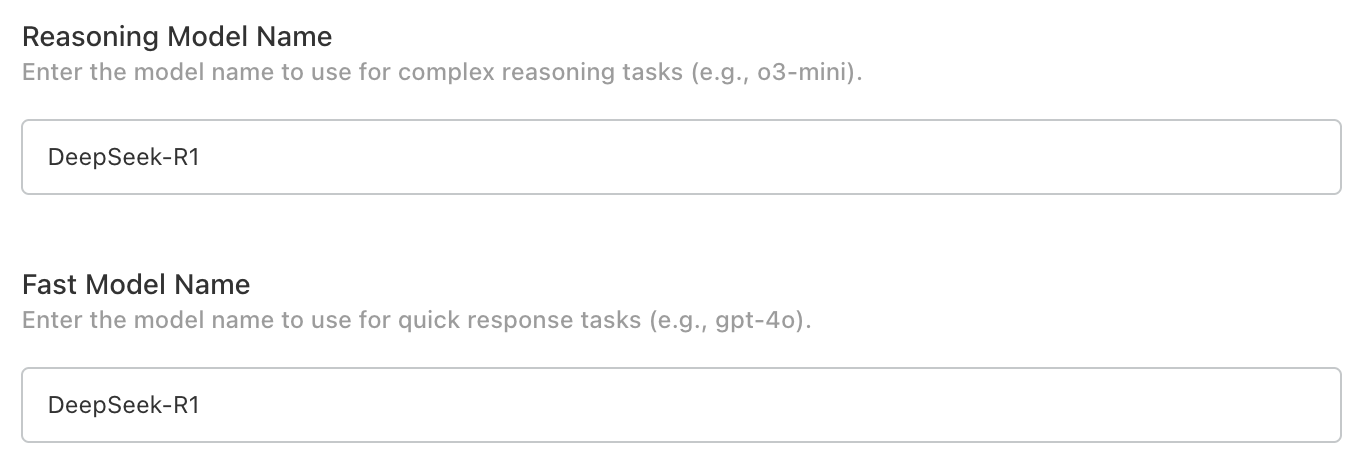
Verify with preflight checks
Preflight checks should run after the configuration is saved and should successfully connect to the model.

Azure OpenAI
Requirements
Azure OpenAI integration requires:
- Integration with Azure OpenAI requires model deployments of the following recommended models:
- gpt-5.4-mini (version: 2026-03-17) -- as fast model
- gpt-5.4-mini (version: 2026-03-17) -- as reasoning model
Databricks AI
Requirements
Databricks AI integration requires:
- Integration with Databricks AI serving endpoints requires:
- Databricks workspace with Mosaic AI Model Serving enabled
- External model endpoints for "gpt-5.4-mini" as fast and reasoning models
- Databricks personal access token with serving endpoint access
Configuration
To integrate Pixee Enterprise Server with Databricks AI serving endpoints:
-
Create the required serving endpoints in Databricks following the Databricks external models documentation. You need to deploy the following endpoint:
gpt-5.4-mini(for gpt-5.4-mini model)
-
Configure Pixee Enterprise Server to use your Databricks workspace URL as the OpenAI base URL with your Databricks PAT as the API key.
-
Verify connectivity by checking that both endpoints are accessible from your Pixee Enterprise Server deployment.
Info
Databricks integration uses the OpenAI-compatible API, so select "OpenAI" as the provider type when configuring through the admin console, and be sure to update the OpenAI Endpoint to match your Databricks base url.
Common Issues
- Ensure your Databricks PAT has permission to access the serving endpoints
- Verify network connectivity between Pixee Enterprise Server and your Databricks workspace
- Check that the required endpoint ("gpt-5.4-mini") is deployed and running
- When using the embedded cluster installation, select "OpenAI" as the provider type since Databricks uses OpenAI-compatible APIs
- Be sure to set the OpenAI endpoint to your Databricks base url
Azure Anthropic
Azure Anthropic allows you to access Anthropic models (such as Claude) through Azure's infrastructure.
Requirements
- An Azure Anthropic API endpoint for your model deployments
- An API key with access to the required models
- Model names for the reasoning and fast models
Configuration
Navigate to the admin console, select the Config tab, then go to the AI Settings section.
Select Azure Anthropic as the Default LLM Provider and configure:
- API Key: Your Azure Anthropic API key
- Endpoint: The Azure Anthropic API endpoint for your model deployments
- Reasoning Model Name: Model for complex reasoning tasks (default: claude-sonnet-4-20250514)
- Fast Model Name: Model for quick response tasks (default: claude-sonnet-4-20250514)
To configure Azure Anthropic in Helm deployments, add the following to your values.yaml:
global:
  pixee:
    ai:
      enabled: true
      default:
        provider: "azure-anthropic"
        model: "claude-sonnet-4-20250514"
        apiKey: "<your Azure Anthropic API key>"
        endpoint: "<your Azure Anthropic endpoint>"
      reasoning:
        model: "claude-sonnet-4-20250514"
      fast:
        model: "claude-sonnet-4-20250514"
AWS Bedrock (Mantle)
AWS Bedrock Mantle serves OpenAI's frontier models (such as GPT-5.6 Luna, Sol, and Terra, and Codex) through an OpenAI-compatible Responses API. These models are reachable only over the Mantle endpoint, not the Bedrock Converse API. Pixee can call Mantle directly or route it through the bundled LiteLLM gateway.
Bedrock offers two incompatible APIs, so the admin console asks for them in two steps: pick AWS Bedrock as the Default LLM Provider, then pick which API to call under Bedrock API. Mantle is the default. Helm deployments skip the second step and name the API directly in the provider value (bedrock-mantle or bedrock-converse).
Upgrading a beta deployment that already ran Bedrock Converse
Earlier builds offered AWS Bedrock (Converse) as its own entry in the Default LLM Provider list. That entry is gone, and the admin console cannot carry the old selection into the new two-step form — the stored value matches nothing, the deployment resolves no provider, and the upgrade fails to deploy with litellm.enabled=true but no upstream provider was resolved.
Before upgrading, or from the admin console afterwards, open AI Settings, choose AWS Bedrock, set Bedrock API to Converse, and save. Your region, API key, and model names are preserved.
This affects only deployments configured on a pre-release build: AWS Bedrock (Converse) has never shipped in a stable release. Helm deployments are unaffected — provider: "bedrock-converse" is unchanged.
Info
Bedrock Mantle hosts OpenAI's proprietary frontier models. Anthropic Claude and other Converse-supported models are reached over the Converse API instead; see AWS Bedrock (Converse) below.
Requirements
- An AWS account with access to the Bedrock Mantle endpoint.
- A Bedrock API key (bearer token).
- A supported region:
us-east-1,us-east-2, orus-west-2. - The model IDs to use, for example
openai.gpt-5.6-luna.
Set up model access in AWS
Do this in AWS before configuring Pixee. The Mantle frontier models are enabled automatically on first use — there is no separate model-access request to approve — and access is controlled entirely through IAM. The simplest way to set everything up is to generate a long-term Bedrock API key, which creates the IAM identity, attaches a Bedrock access policy, and issues the key in a single step.
- Open the Amazon Bedrock console in your chosen region and select API keys.
- On the Long-term API keys tab, choose Generate long-term API keys and set an expiration.
- Under Advanced permissions, add the AWS managed policy
AmazonBedrockMantleInferenceAccess. Mantle models are served on a separate endpoint that the default policy (AmazonBedrockLimitedAccess) does not cover, so this policy is what allows the key to call them. - Generate the key and store it securely — it is shown only once. This is the bearer token you paste into Pixee.
For the full procedure and the AWS CLI equivalent, see AWS's Generate an Amazon Bedrock API key.
Endpoint
The Mantle endpoint is region-specific — the region appears in the hostname, and it must match the region where you generated the API key:
https://bedrock-mantle.<region>.api.aws/openai/v1
| Region | Endpoint |
|---|---|
us-east-1 |
https://bedrock-mantle.us-east-1.api.aws/openai/v1 |
us-east-2 |
https://bedrock-mantle.us-east-2.api.aws/openai/v1 |
us-west-2 |
https://bedrock-mantle.us-west-2.api.aws/openai/v1 |
In the admin console this URL is derived from the AWS Region you enter, so you normally leave Endpoint blank. Helm deployments must set it explicitly.
Configuration
Navigate to the admin console, select the Config tab, then go to the AI Settings section. Select AWS Bedrock as the Default LLM Provider, leave Bedrock API set to Mantle, and configure:
- AWS Region: The region hosting the Mantle endpoint (default:
us-east-1) - API Key: Your AWS Bedrock API key (bearer token)
- Endpoint: Leave blank to use the regional endpoint derived from the AWS Region, or enter a full URL to override it
- Reasoning Model Name: The Mantle model ID for complex reasoning tasks (default:
openai.gpt-5.6-luna) - Fast Model Name: The Mantle model ID for quick response tasks (default:
openai.gpt-5.6-luna)
The Responses API is enabled automatically for this provider, so there is no Use Responses API toggle to set.
Set the Bedrock Mantle provider in your values.yaml. Unlike the admin console, Helm has no region field to derive from, so endpoint is required:
global:
  pixee:
    ai:
      enabled: true
      default:
        provider: "bedrock-mantle"
        # Your AWS Bedrock API key (bearer token).
        apiKey: "<your AWS Bedrock API key>"
        # Required: the region-specific Mantle endpoint.
        endpoint: "https://bedrock-mantle.us-east-1.api.aws/openai/v1"
        # Optional, informational only -- the region is already in the endpoint.
        region: "us-east-1"
        model: "openai.gpt-5.6-luna"
      reasoning:
        model: "openai.gpt-5.6-luna"
      fast:
        model: "openai.gpt-5.6-luna"
Warning
Switching an existing deployment to Bedrock Mantle? Set every model field — reasoning, fast and Web Search Model Name — to a Mantle model ID. openai.gpt-5.6-luna works for all three. These fields keep whatever value your deployment was already using, and OpenAI-hosted names do not exist on Bedrock, so analysis fails until you replace them.
Pick an openai.gpt-5.4, 5.5, or 5.6 model and a region of us-east-1, us-east-2, or us-west-2. Mantle offers web search only on those models in those regions — openai.gpt-5.6-luna qualifies.
Note
Bedrock Mantle works with or without the LiteLLM gateway, but the gateway adds response caching and per-request cost attribution in the LLM Token Usage dashboard, which a direct connection cannot provide.
AWS Bedrock (Converse)
AWS Bedrock lets you run Anthropic Claude models (such as Claude Haiku 4.5) and other foundation models on AWS infrastructure through the Bedrock Converse API. This is the second of the two Bedrock APIs described above — reach it by selecting AWS Bedrock and setting Bedrock API to Converse.
These models are not reachable over the standard OpenAI/Anthropic endpoints, so Pixee routes Converse traffic through its bundled LiteLLM gateway: Pixee's services send ordinary OpenAI chat-completions requests to LiteLLM, and LiteLLM translates each one to the Bedrock Converse API (and the response back to OpenAI shape).
Info
Bedrock Converse is only available through the LiteLLM gateway — the Enable LiteLLM Gateway toggle, on by default, or litellm.enabled: true in Helm.
Warning
Upgrading a beta deployment that already ran Bedrock Converse? The provider list changed shape, your stored selection does not carry over, and the upgrade fails to deploy until you re-select it — see Upgrading a beta deployment that already ran Bedrock Converse above.
Requirements
- The LiteLLM gateway enabled (see the note above)
- An AWS Bedrock API key with model access enabled for the models you intend to use
- The AWS region where those models (or their inference profiles) are enabled
- Model names given as Bedrock inference-profile IDs, e.g.
us.anthropic.claude-haiku-4-5-20251001-v1:0
Warning
Newer Claude models on Bedrock (including Claude Haiku 4.5) can only be invoked through a cross-region inference profile — use the us.-prefixed inference-profile ID (e.g. us.anthropic.claude-haiku-4-5-20251001-v1:0), not the bare anthropic.claude-… model ID, and set the region to a US region where you have model access. The bare ID returns an on-demand-throughput error.
Configuration
Navigate to the admin console, select the Config tab, then go to the AI Settings section. Ensure Enable LiteLLM Gateway is on (it is by default), then select AWS Bedrock as the Default LLM Provider, set Bedrock API to Converse, and configure:
- API Key: Your AWS Bedrock API key (bearer token)
- AWS Region: The region where your Bedrock models are enabled (default:
us-west-2) - Reasoning Model Name: The Bedrock inference-profile ID for complex reasoning tasks (default:
us.anthropic.claude-haiku-4-5-20251001-v1:0) - Fast Model Name: The Bedrock inference-profile ID for quick response tasks (default:
us.anthropic.claude-haiku-4-5-20251001-v1:0)
To configure AWS Bedrock (Converse) in Helm deployments, enable the LiteLLM gateway and set the Bedrock provider in your values.yaml:
litellm:
  enabled: true
  # A LiteLLM master key (the Bearer token in-cluster callers use to reach
  # the gateway). Set a strong random value, or supply litellm.existingSecret.
  masterKey: "<random secret>"
  database:
    # Credentials for LiteLLM's database. Set a strong random value, or
    # supply litellm.database.existingSecret.
    password: "<random secret>"
global:
  pixee:
    ai:
      enabled: true
      default:
        provider: "bedrock-converse"
        # Your AWS Bedrock API key (bearer token). LiteLLM sends it to
        # Bedrock; no AWS access key/secret is required for this method.
        apiKey: "<your AWS Bedrock API key>"
        # The region where your Bedrock models are enabled.
        region: "us-west-2"
        model: "us.anthropic.claude-haiku-4-5-20251001-v1:0"
      reasoning:
        model: "us.anthropic.claude-haiku-4-5-20251001-v1:0"
      fast:
        model: "us.anthropic.claude-haiku-4-5-20251001-v1:0"
Oracle Cloud Infrastructure Generative AI Services
Requirements
Oracle Cloud Infrastructure (OCI) integration requires: - Integration with Oracle Cloud Infrastructure Generative AI Services * Llama and custom models can be deployed, please contact support for up-to-date instructions based on your deployment type. *